Updating the firmware
Updating the firmware is easy to do, however it is important to do it correctly to prevent errors or board misconfiguration. A guide to downloading Capoworks firmware and setting up TunerStudio can be found on this page.
Updating firmware involves a process sometimes called "flashing" or even "programming" the ECU. Generally, these all refer to the same thing: taking the compiled Capoworks firmware and loading it into the non-volatile flash memory on the ECU.
Before flashing, confirm that the build names your exact board target and supplies a matching
TunerStudio .ini. Use only a compatible board target from the same Capoworks build.
Updating the firmware with ECU Console (if supplied)
There is currently no published stable Capoworks firmware release on GitHub. Obtain an artifact for your exact board target from the current Capoworks Actions when one is available, or build from source using the repository instructions. Do not assume that an upstream or differently branded binary is compatible.
Some builds may also supply ECU Console, which can flash firmware to supported ECUs. If your build includes ECU Console, use the console supplied with that matching build. See the Capoworks firmware repository and its releases for further information.
If your build supplies ECU Console, extract that build's contents, navigate to the drivers/
directory, and install the drivers. Then navigate to the console/ directory and run the supplied
console. Inherited builds may retain the original executable name, for example fome_console.exe on
Windows. After first confirming TunerStudio is not running, connect the ECU to the computer. ECU
Console will automatically detect the board and present a display similar to the one below.
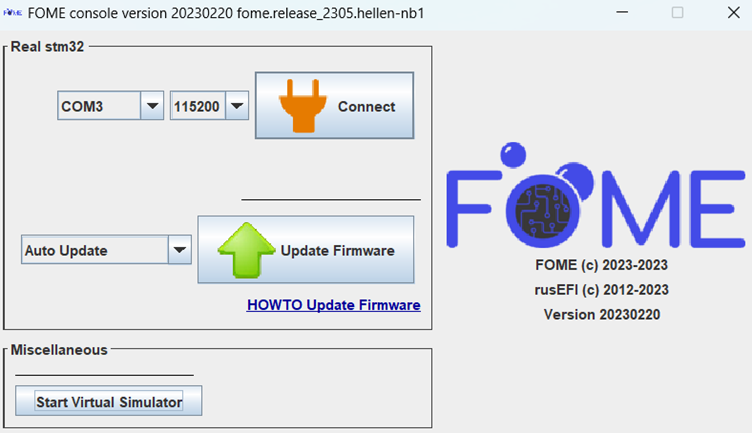
Next, choose the Update Firmware button and leave the board connected until the console notifies that the update was successful with a green display. Only once the console has presented this success message, disconnected and re-connect the ECU to the computer to reboot it with the new firmware.
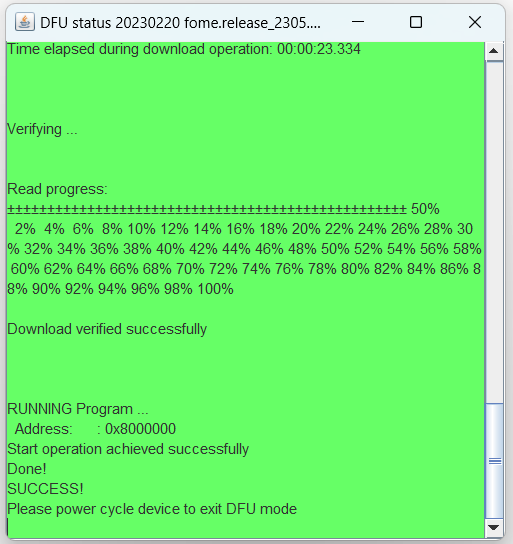
If the update completes successfully, congratulations; proceed to the Setting up TunerStudio section. If the update does not complete successfully, the firmware may need to be loaded by first forcing the board into bootloader or Device Firmware Update (DFU) mode, documented in the next section.
Updating firmware via manual bootloader/DFU mode
In the event of a firmware update/flash failure, or some other firmware corruption issue, such that ECU Console nor TunerStudio recognize the ECU when connected, the board needs to be first forced into bootloader mode before updating. In these situations, ECU Console cannot communicate with the firmware and so is unable to configure it into bootloader mode for updating.
To enter bootloader mode, on the ECU you will need to access buttons or pins on the main board to force the processor into this mode. Some boards use a momentary button, likely near to the reset button, to force this mode during power-up. Others might use a set of pins or pads that need shorted to force this mode during power-up. Press the button or short the pins with the ECU disconnected from the computer, then simultaneously connect the ECU into the computer. Once connected, the button can be released or the short removed.
When a board has been successfully booted into bootloader/DFU mode, ECU Console will recognize this and display the manual DFU update selection.
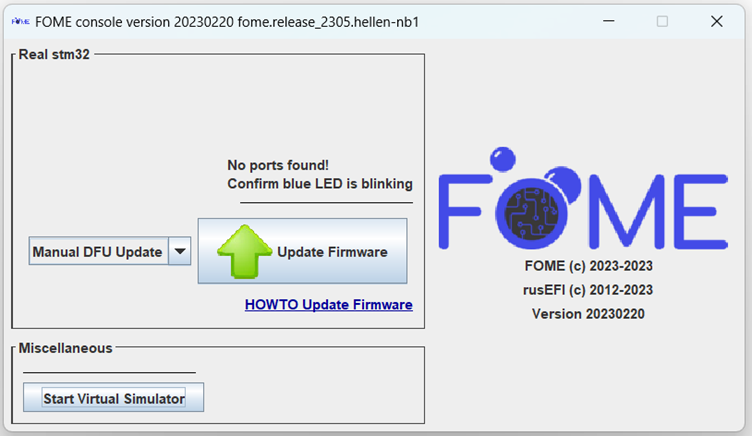
Next, choose the Update Firmware button and leave the board connected until the console notifies that the update was successful with a green display. Only once the console has presented this success message, disconnected and re-connect the ECU to the computer to reboot it with the new firmware.
Setting up TunerStudio
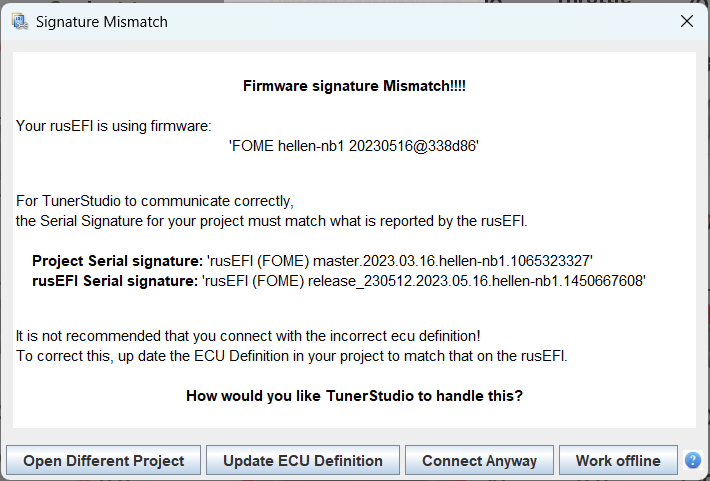
With the ECU connected, open TunerStudio with the associated project. TunerStudio will recognize that the project's ECU
definition is out of date and display a prompt to update it. Choose the Update ECU Definition button, which will
attempt to automatically update the definition from official sources. If an official definition cannot be found,
manually load the .ini definition file associated with the firmware (i.e. from the downloaded bundle).
Next, under the Controller tab, open the Popular vehicles menu and choose the top button (e.g. Hellen NB1 36 wheel as shown here) to load the preset for your vehicle (not the button to Reset firmware settings).
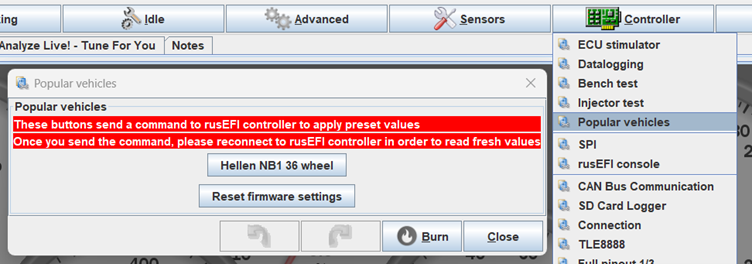
Once the preset has been loaded, you can either start tuning or load your tune from the older firmware versions under File > Load Tune (msq). After that, the update is complete!
Troubleshooting and Other Notes
See the Flashing Software Notes page for troubleshooting and other flashing notes.