How to Add, Change, and Test a Capoworks ECU Documentation Page
Prerequisites
- A free login in GitHub
Simplest approach to make a small change
- go to end of page and click on "Edit this page" link
- follow GitHub's instructions for "Editing files in another user's repository".
Our recommended way to edit or add a larger number of pages
Get this: Github Desktop
Clone the Capoworks ECU documentation repository: Capoworks ECU Documentation Repo
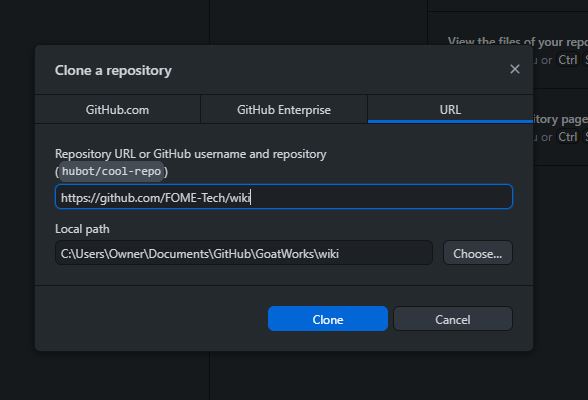
Get VScode: VSCode
Open the documentation repository in VS Code from GitHub Desktop.
The screenshots on this page are inherited and may show older repository names or interface
details. They remain unchanged as historical documentation assets; follow the Capoworks repository
links and commands in this article.

On your left by default, you will see your explorer sidebar. If you do not see it, hit CTRL + SHIFT + E
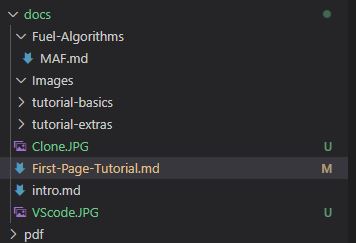
To control ordering of topics in sidebar navigation the so called "numbered prefix" concept is used. This concept is further explained in linked section of Docusaurus user manual
Pages and folders are created by right-clicking empty space in the explorer and should be named "##-xxxx.md" according to the linked Docusaurus convention. Fill in the "##" for a page or folder position and "xxxx" for the topic. For example, this is how folders appear in the documentation sidebar:

To make images work, the image files need to be in the same folder as the .md file you created or
referenced with the appropriate relative path. Image names are case-sensitive. For example,
"13-How-to-edit-wiki.md" and "Folder.JPG" are both in the "docs" folder.
Here is the guide for formatting the text
How to test your changes
Prerequisites for Local Testing
- Node.js version 20, as defined by this repository's
.nvmrc:- When installing Node.js, you are recommended to check all checkboxes related to dependencies.
Run Docusaurus locally by
Open a terminal or command prompt and navigate to the cloned documentation directory:
cd capoworks-ecu-docs
If you use nvm, select the repository's Node.js version:
nvm use
Install the dependencies locked by the repository:
npm ci
Run the Docusaurus development server: After you run this, your browser should open http://localhost:3000/capoworks-ecu-docs/
npm start
The cd command changes the directory you're working with. In order to work with your newly created Docusaurus site, you'll need to navigate the terminal there
The npm ci command installs the exact dependency versions locked by package-lock.json. Run it after cloning and whenever that lockfile changes.
The npm start command builds your website locally and serves it through a development server at http://localhost:3000/capoworks-ecu-docs/
Open docs/13-How-to-edit-wiki.md (this page) and edit some lines: the site reloads automatically and displays your changes after hitting save
Build and Check the Site
Create a production build before submitting a larger change:
npm run build
Run the repository checks with:
npm run lint
How to publish your change to wiki
Open GitHub Desktop again, and check that all of the intended changes appear.
It will ask you for a summary of your changes, more thorough description, and to commit the changes (see bottom left of picture)
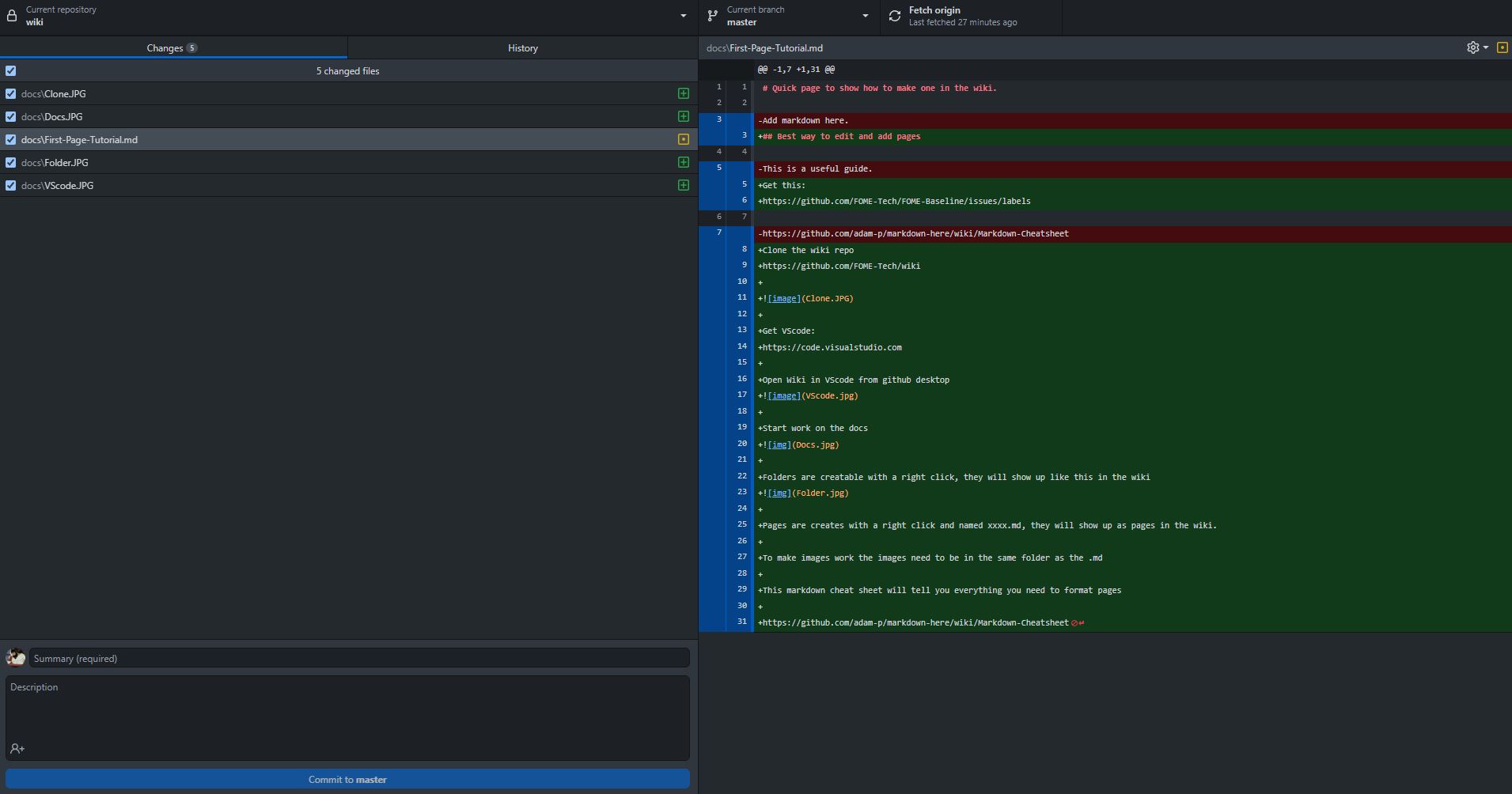
Most likely, you do not have direct write permission for the documentation repository, so at the bottom left you may be prompted to "create a fork." Click that, then "Fork this repository," and "To contribute to the parent project." Choose the repository's active contribution branch when asked which branch to commit to. Once committed, you will be directed back to the main screen and near the top you will see the following prompt.
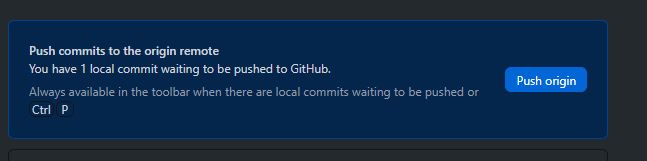
Pushing in this context means saving your changes to your fork of the documentation repository. Once you do this, the next prompt will be to "Preview Pull Request." Click the down-arrow to the right of it and instead click "Create Pull Request." As the text beside it shows, you "Create a pull request to propose and collaborate on your changes." This requests that the Capoworks documentation maintainers review your suggested changes. Once accepted, the upstream documentation repository can incorporate your branch and the live site can include your edits.
When you create a pull request, your browser should open automatically, and you'll again see a "Title" and "Description" box. Use them to describe your documentation changes so the maintainers can review them.