How to first setup a board for use
This guide covers preparing compatible hardware for a first start with Capoworks ECU.
Get firmware for your board
There is currently no published stable Capoworks firmware release on GitHub. Obtain an artifact for
your exact board target from the
Capoworks firmware repository's Actions when
one is available, or build the firmware from source using the repository instructions. Check the
repository's releases page for any
subsequently published stable release. Use the firmware binary, board target, and .ini definition
that match your exact hardware. Do not assume that an upstream or differently branded binary is
compatible.
Some builds may also supply ECU Console. If your build includes it, use the console supplied with that matching build. See how to update the firmware and the ECU Console reference.
Compatibility varies by board design and firmware release. Verify the target in the Capoworks
release notes and use the matching TunerStudio .ini definition from the same bundle. Board design
sources and producer credits are listed in the hardware pages and on Credits and
Sources.
Install Tunerstudio on your tuning computer
Make sure that you have downloaded the latest version of TunerStudio (TS) from EFI Analytic's site. Although the base version of the software is free, it is strongly recommended to buy a license for the additional features including auto-tuning and the ability to customize the default dashboard.
Begin the setup by plugging the ECU into the laptop and opening TS. Create a new project and click detect under firmware. Select the COM port corresponding to the Capoworks ECU in the device list. If the COM port cannot be found or the firmware cannot be automatically detected, click Other/Browse and load the matching .ini file from the same Capoworks firmware bundle.
Start Configurating/Modifying your TunerStudio Project
In tunerstudio you will be presented with a screen with several tabs on top, and a gauge cluster on the bottom. Your configurations and parameters will live on those tabs on top.
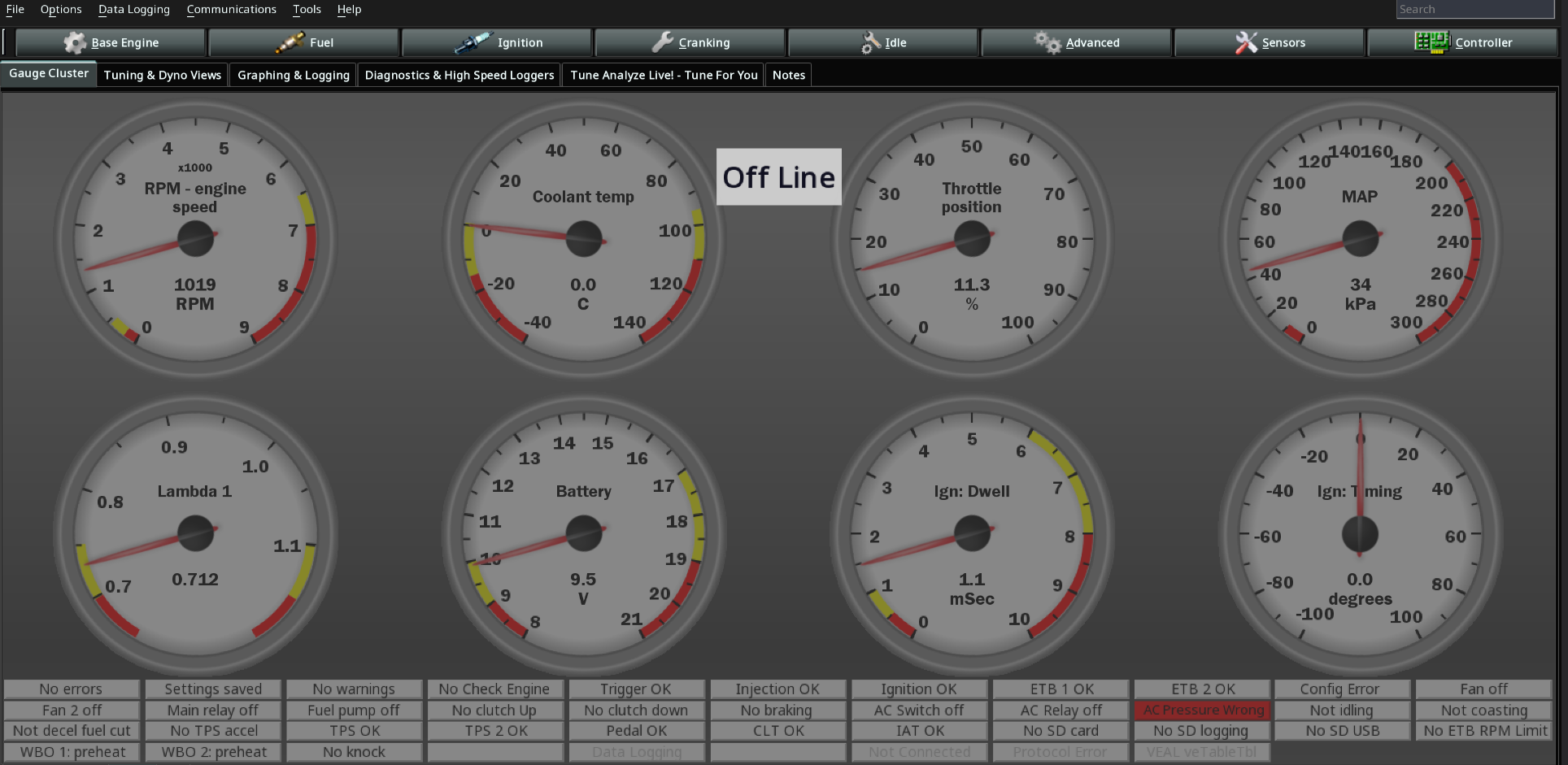
- Base Engine
- Base Engine Info
- You will be prompted to fill out basic information about your engine. Displacement, number of cylinders, firing order, (optionally) your car make and model, engine model and compression ratio.
- Additionally it will ask you to choose a fuel algorithm. Here's a small guide on how to pick one.
- Limits and Protections
- Rev Limiter, Boost Cut, Oil Pressure Protection, Lambda Protections, Injector DC Cut
- Trigger
- Primary Trigger Wheel type and Location (Crank or Cam), Trigger Angle, Cam trigger Selection and type, VVT Offset,.
- Outputs
- Here's where you set up Fuel Pump, Fan, Tachometer, Speedo Output, Starter Disable, Check Engine Light...
- Base Engine Info
- Fuel
- Injector Outputs, Injector Pairing or Sequential, Injector Size, Fuel Pressure compensation, Stoich AFR setup, Dead Times, VE Table. CLT/IAT Corrections, DFCO, Accel Enrichment...
- Ignition
- Spark Outputs, Dwell, Ignition Tables, Knock Retard Settings, IAT/CLT Corrections...
- Cranking
- Idle
- Advanced
- Launch Control, Boost, GPPWM, Drive By Wire, VVT, Lua Scripting...
- Sensors
- Controller
- Here you will find modes for Injector, Coils and Bench Test. Settings for CANBus, WiFi, Additional communication, SD Card Logging, Anti Lag, Rotary and Experimental stuff. Be careful, some options here assume you know what you're doing.